How to change your password
Sign in to your account
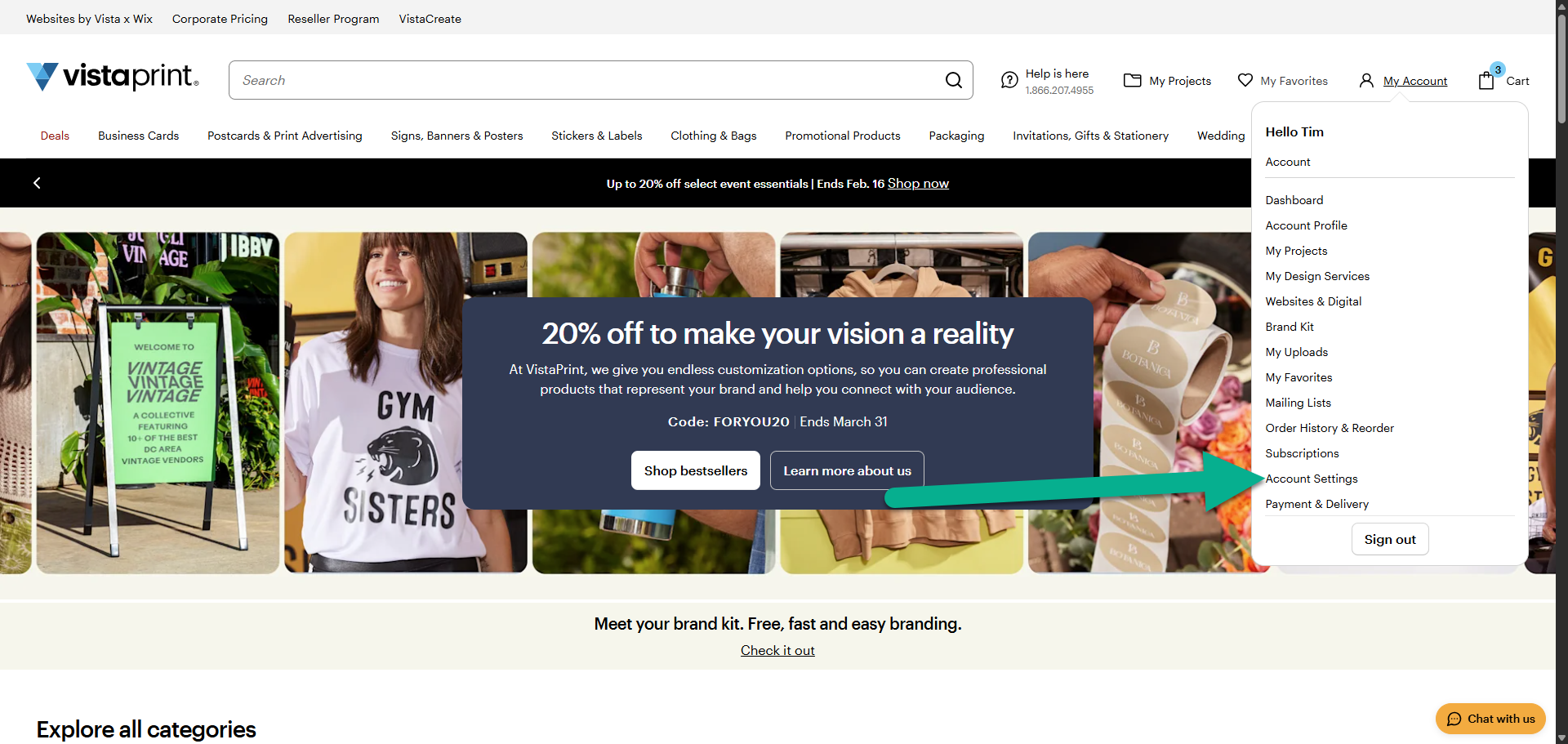
Go to My Account and select Account Settings
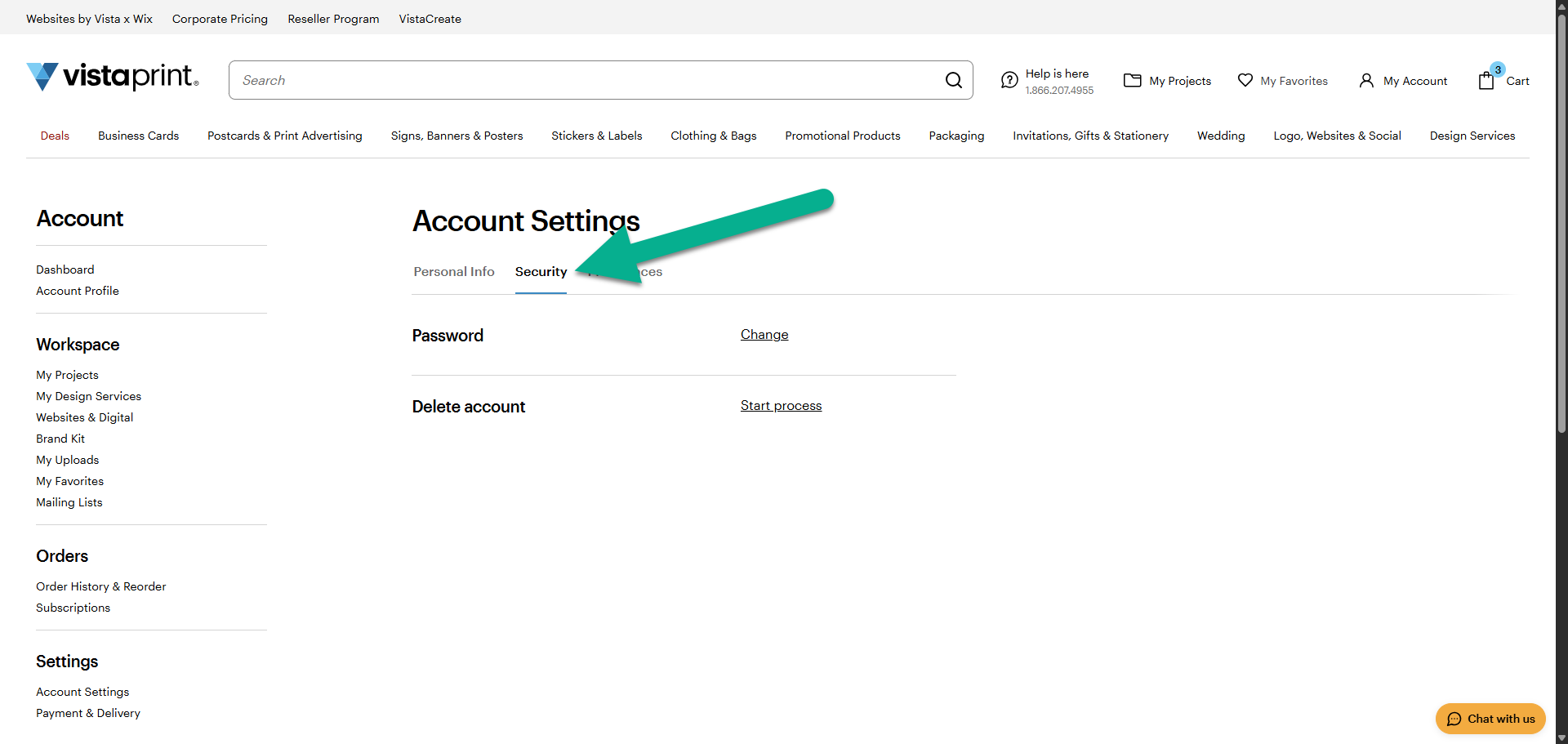
Open the Security tab
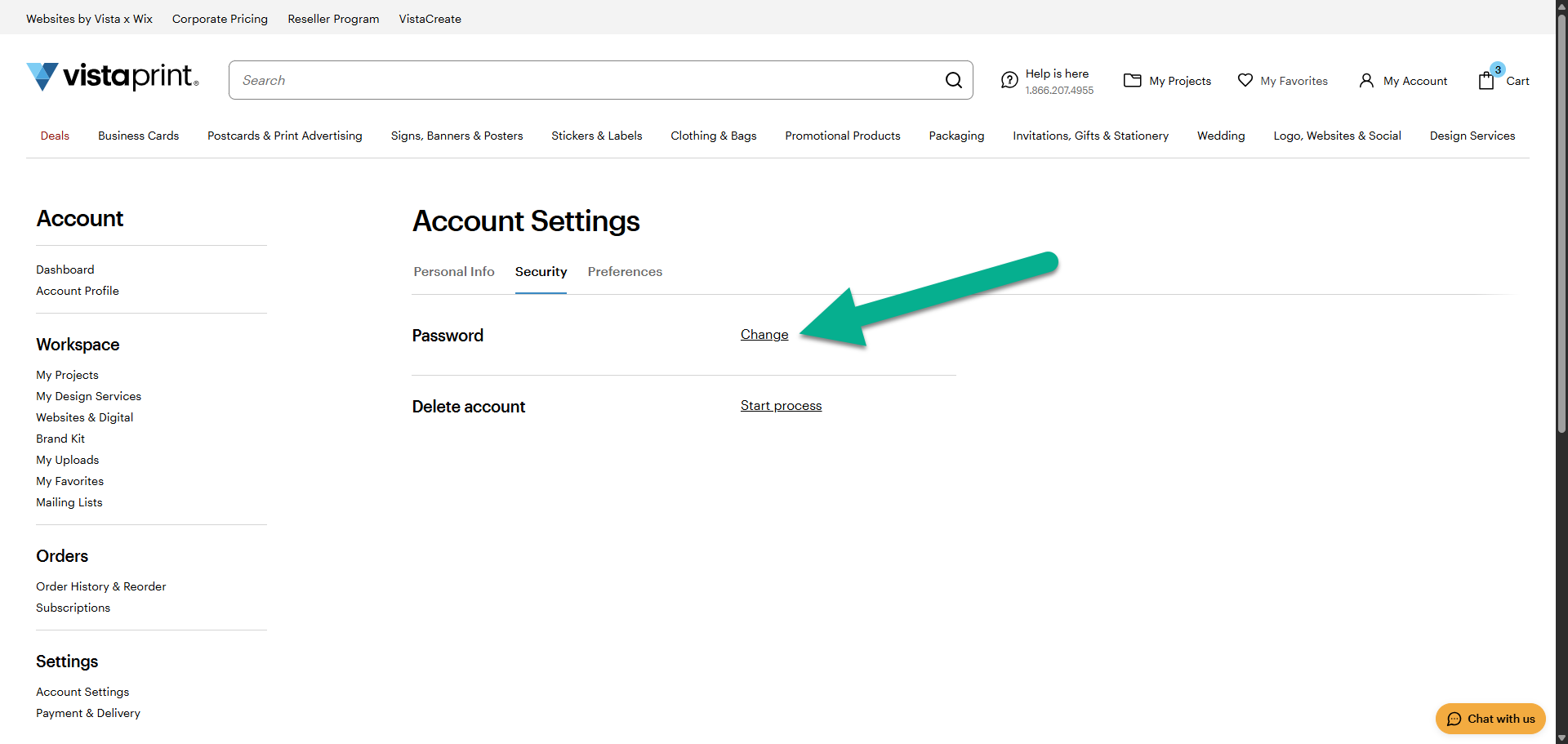
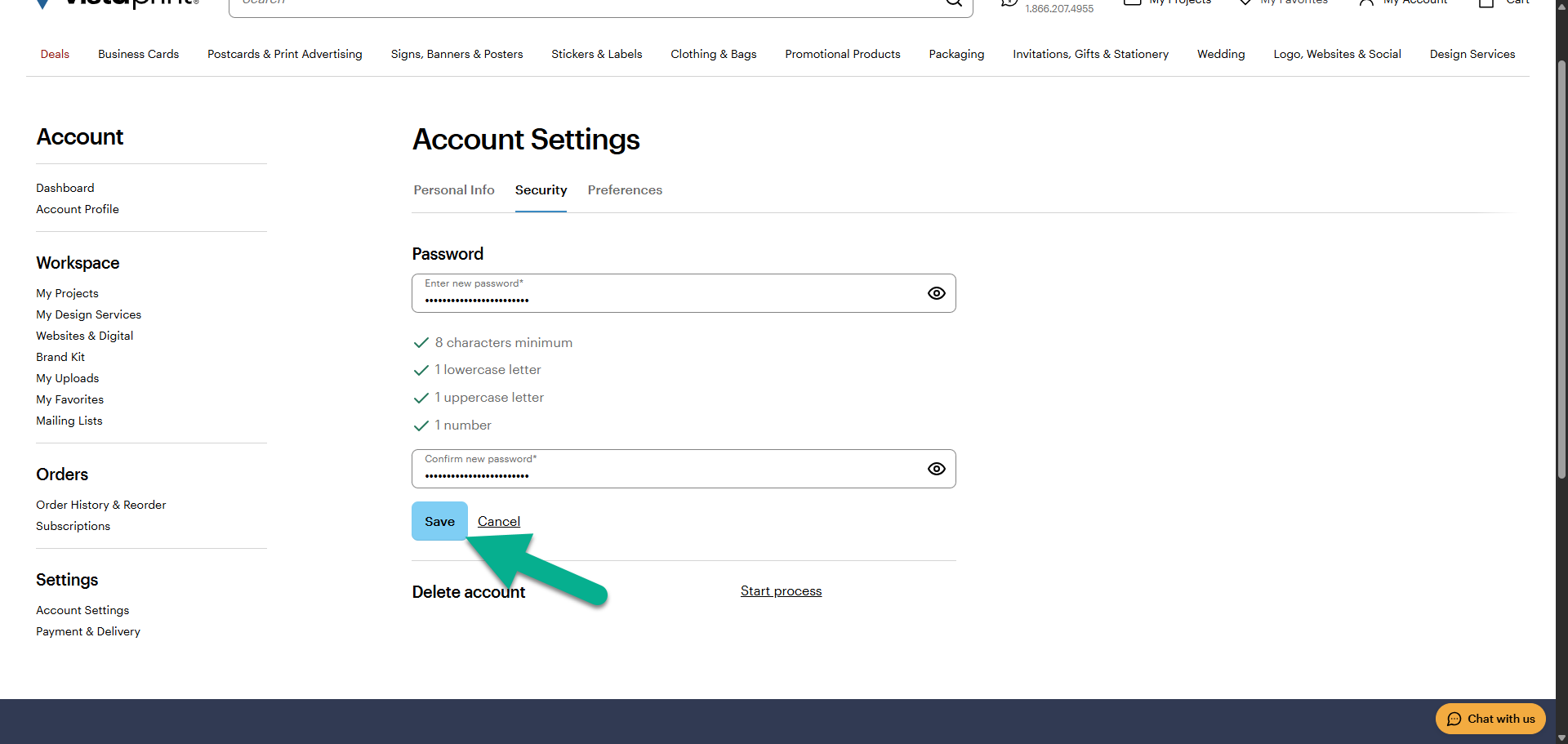
In the password section, select Change
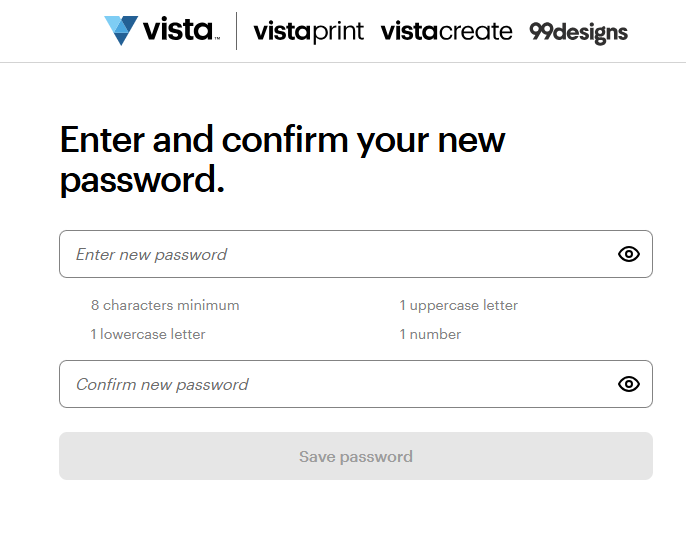
Enter your new password
We'll let you know if the password meets the requirements for a secure password. Repeat your password to confirm it, then select Save.
How to reset your password
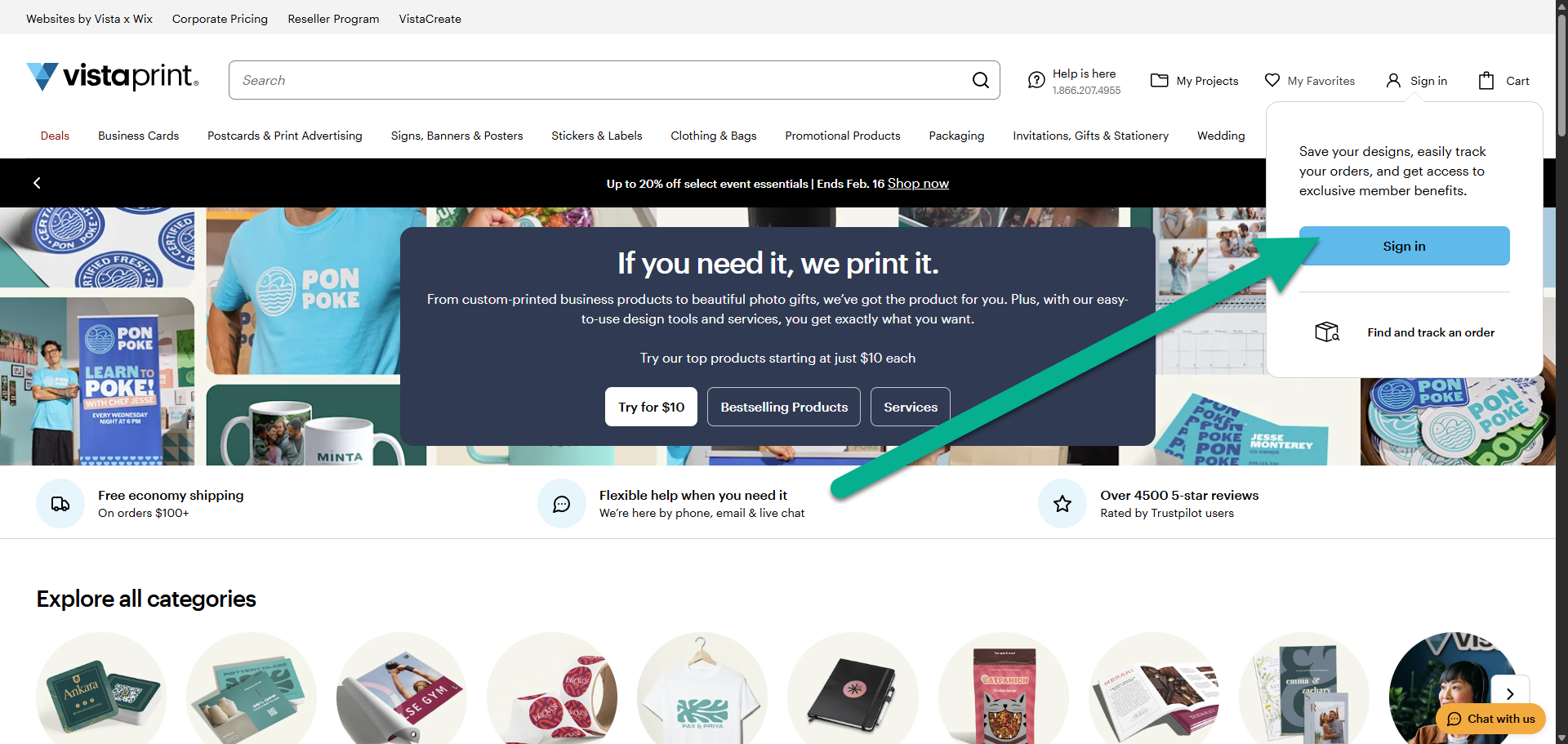
Select Sign in at the top-right corner
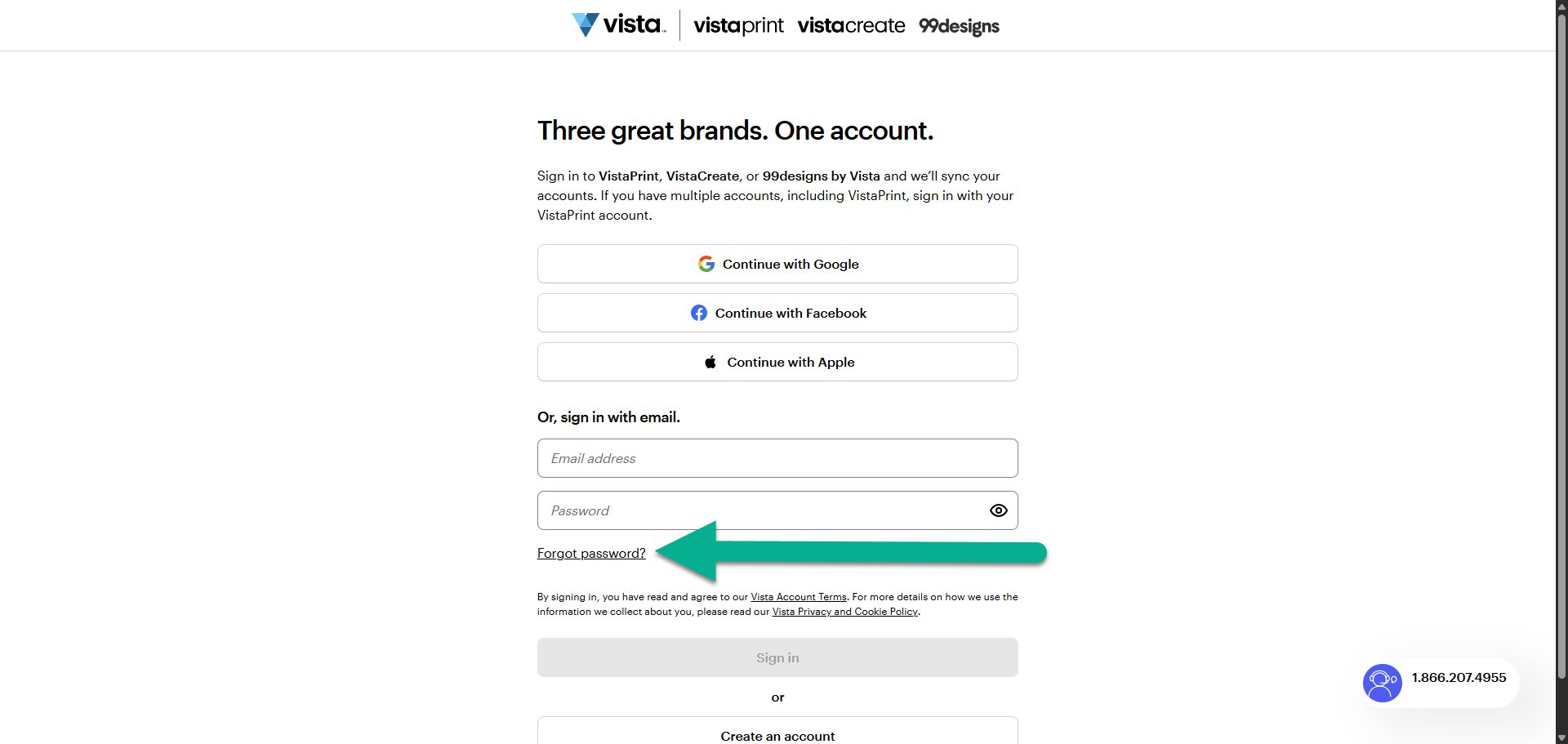
Under Sign in with email, select Forgot password?
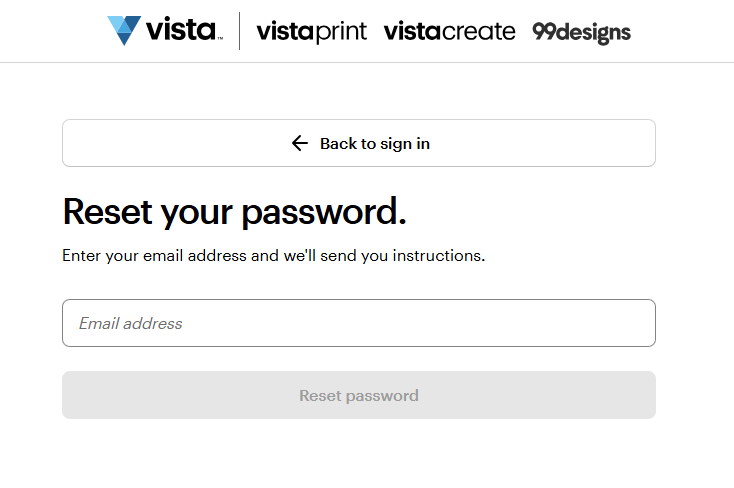
Enter the email linked to your VistaPrint account
If you're not sure which email to use, check for an order confirmation or other email from us. Use the email where you received it.
Wait for the password reset email
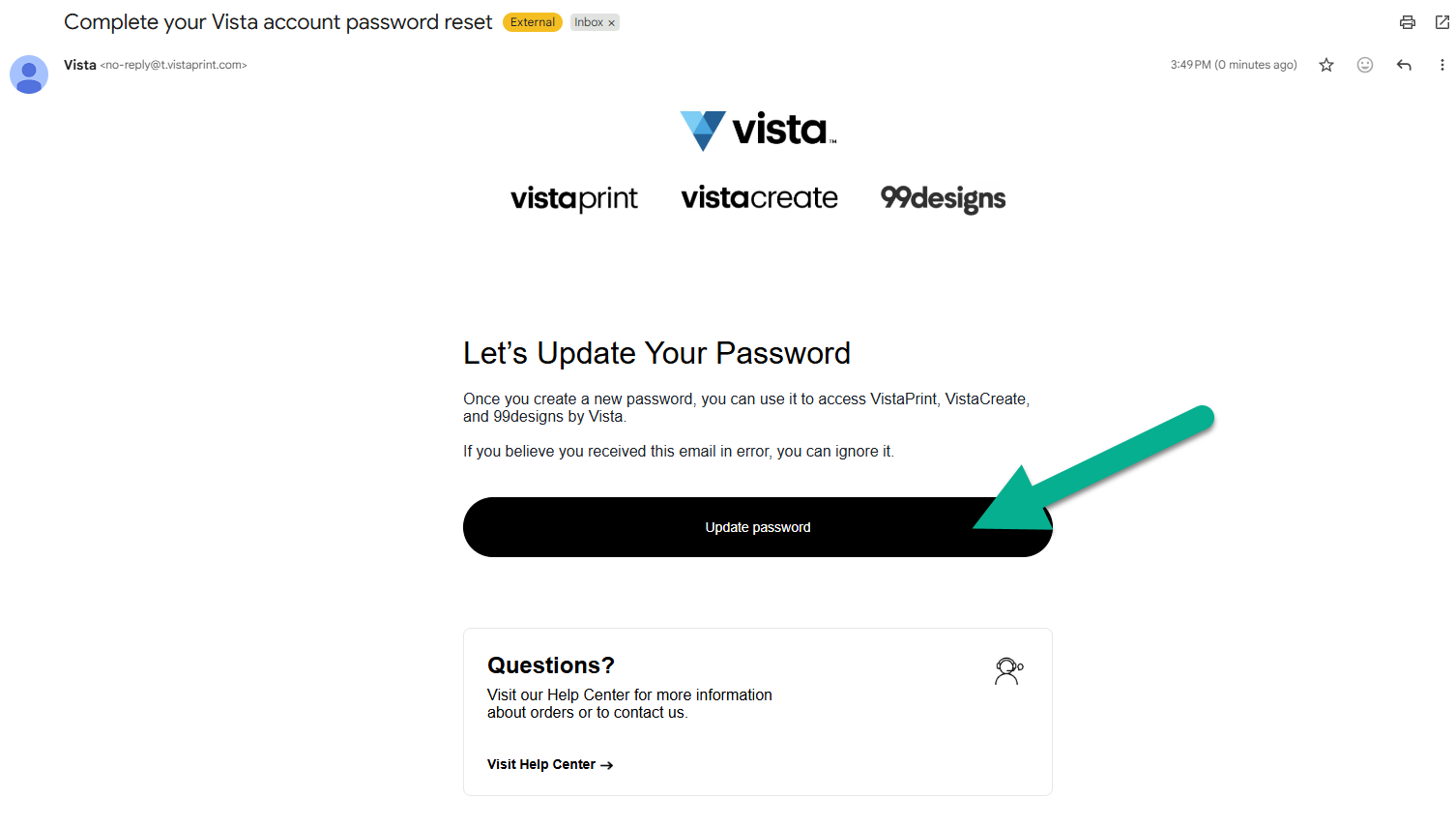
We'll send you an email with the subject ‘Complete Your VistaPrint Password Reset’. If it doesn't arrive within a few minutes, check your spam or junk folder and add no-reply@vistaprint.com to your safe list. To create a new password, select Update password.
Enter your new password
We'll let you know if the password meets the requirements for a secure password. Repeat your password to confirm it, then select Save password.