
How do I connect a domain purchased from Vista x Wix to my Vista x Wix site?
Last updated 16 June 2026.
Guide
From Websites & Digital Marketing, select Connect a domain and follow the steps to assign it to your site.

Steps to connect a domain

1

Open the website marketing page

Go to the VistaPrint Websites & Digital Marketing page.

2

Start the connection

Select Connect a domain.
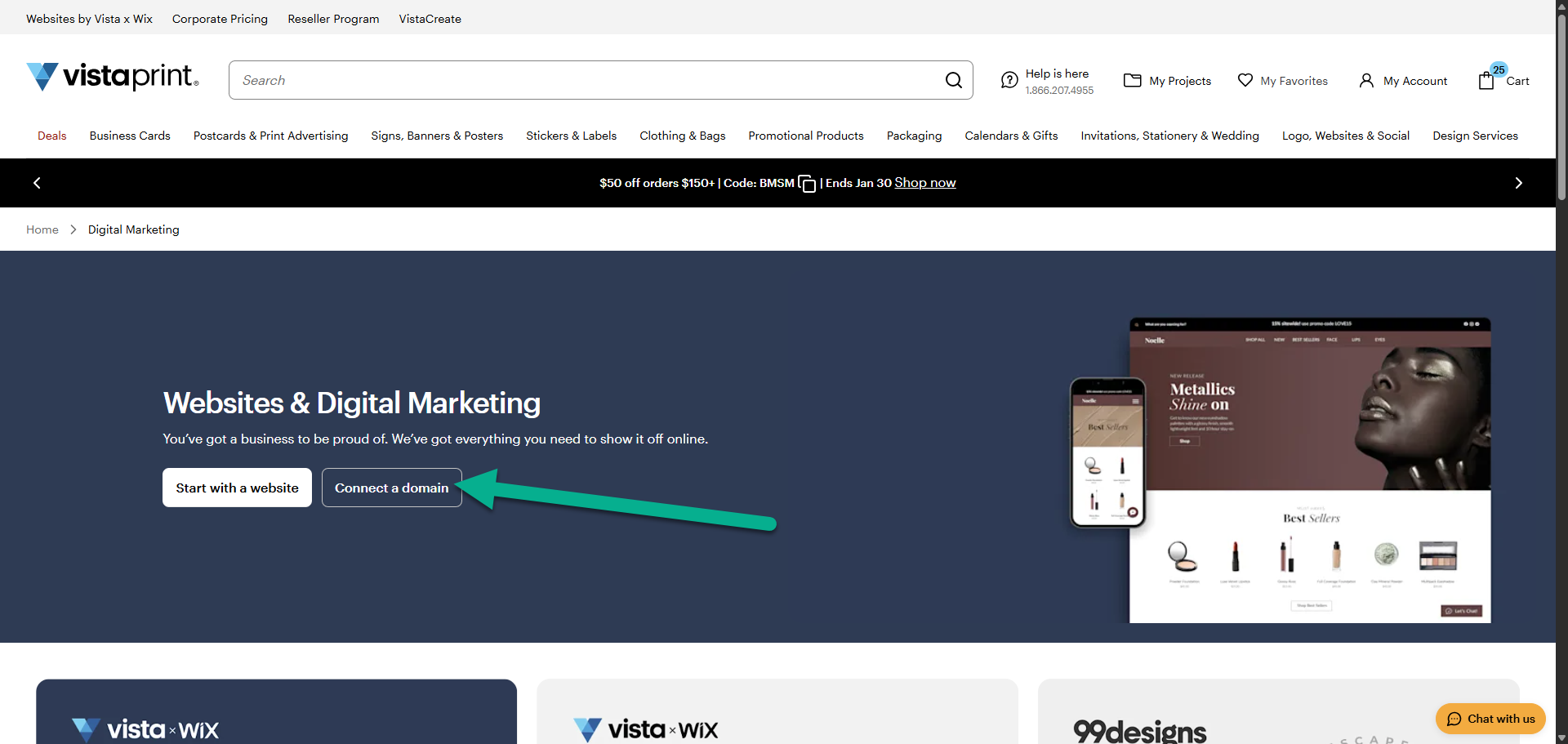
VistaPrint Websites & Digital Marketing page with an arrow pointing to the Connect a domain button.
3

Choose your domain type

Select the option to connect a domain you already own.
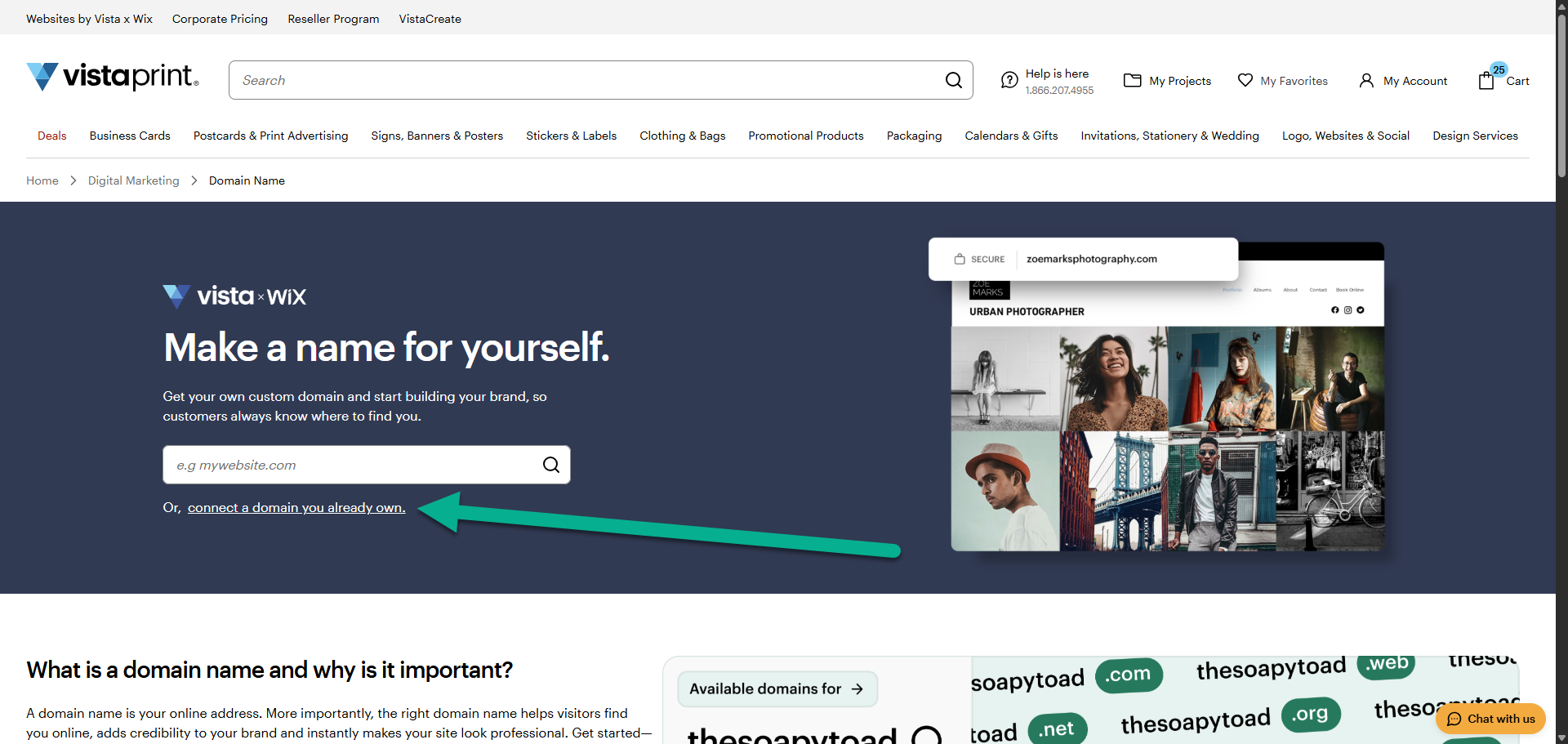
Domain connection page with an arrow pointing to connect a domain you already own
4

Select your website

From your list of websites, select the website you want to use and then select Continue.
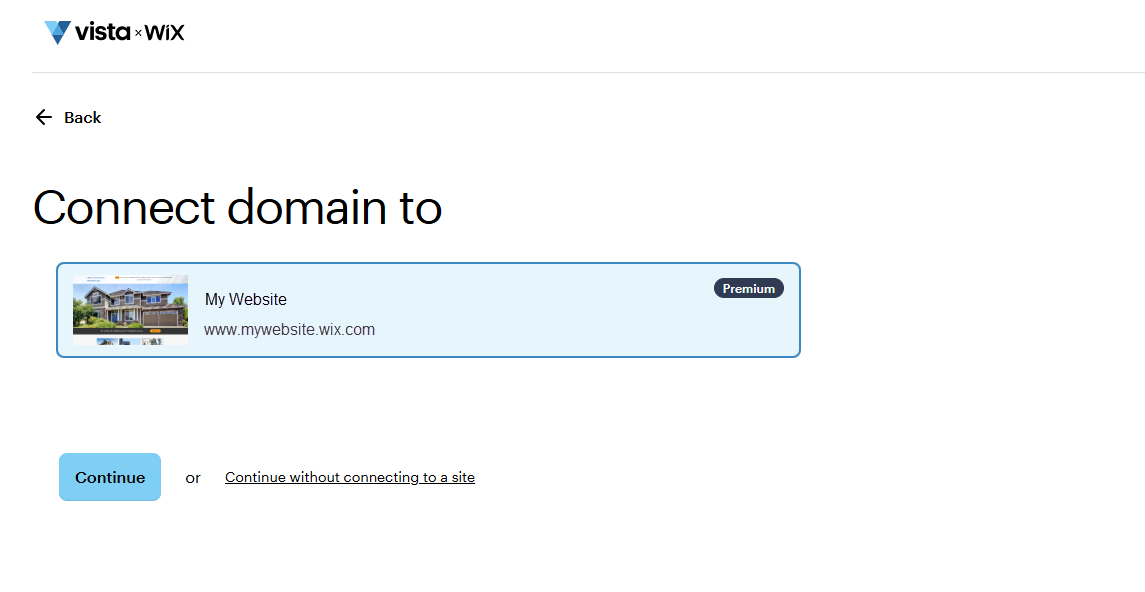
VistaPrint x Wix interface for connecting a domain. A selected website card shows My Website with a Premium badge, followed by a Continue button.
5

Enter your domain name

Type in the domain name that you want to connect to your site.
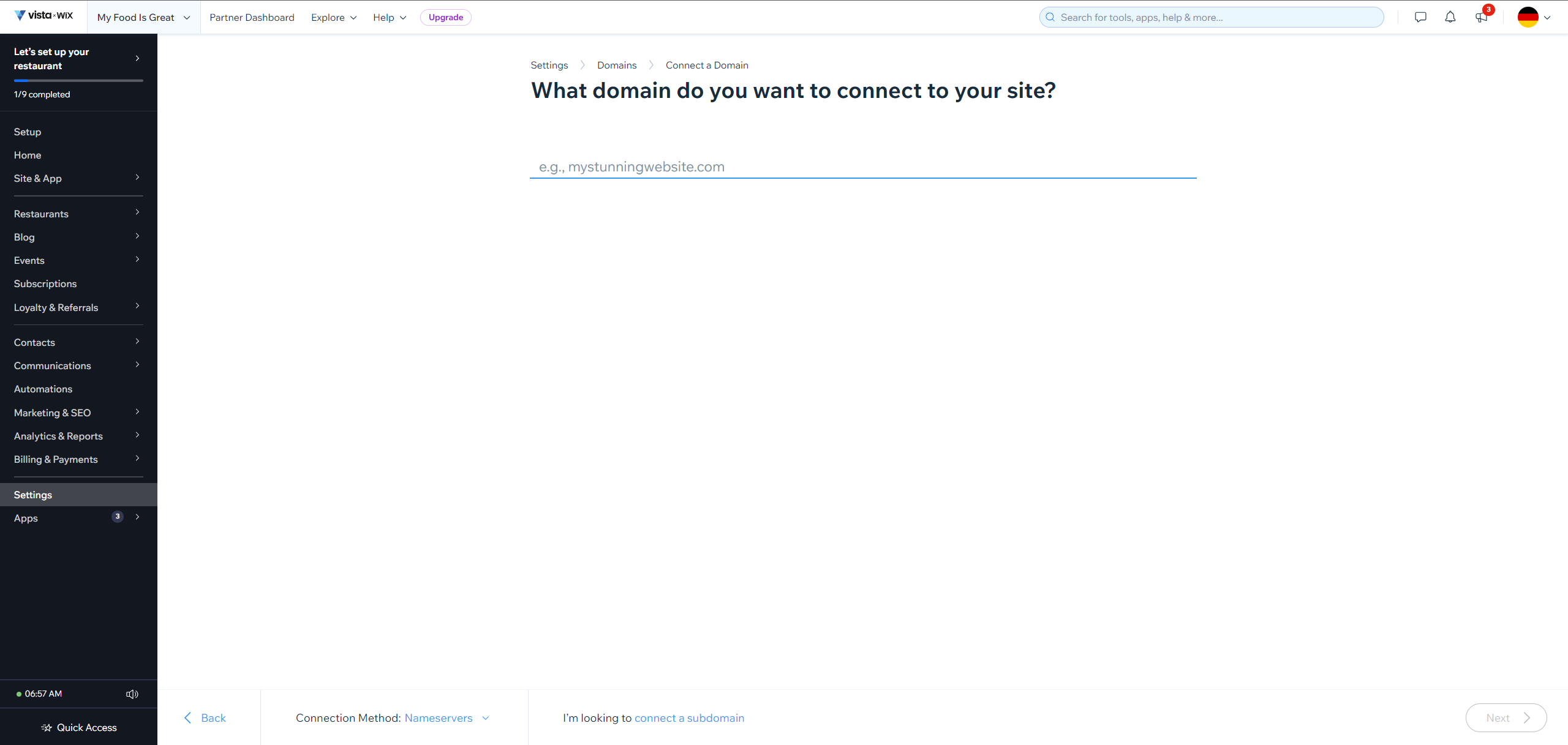
Wix dashboard with option to enter a custom domain name
6

Confirm the connection

Select Assign to finish the setup. It can take up to 48 hours for your new domain to be fully active online.
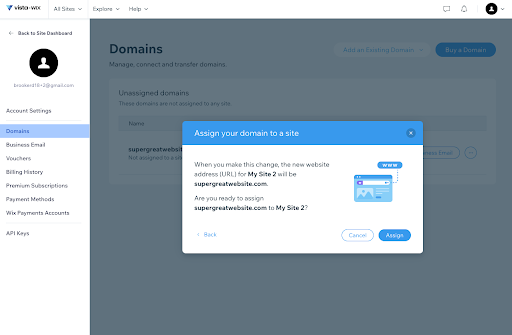
Vista x Wix domain assignment page with a pop-up to confirm assignment of a domain to a site with a blue Assign button to confirm.

Was this article helpful?
Learn how we use your feedback

Connect live with Customer Support

Need help?

Contact Us
