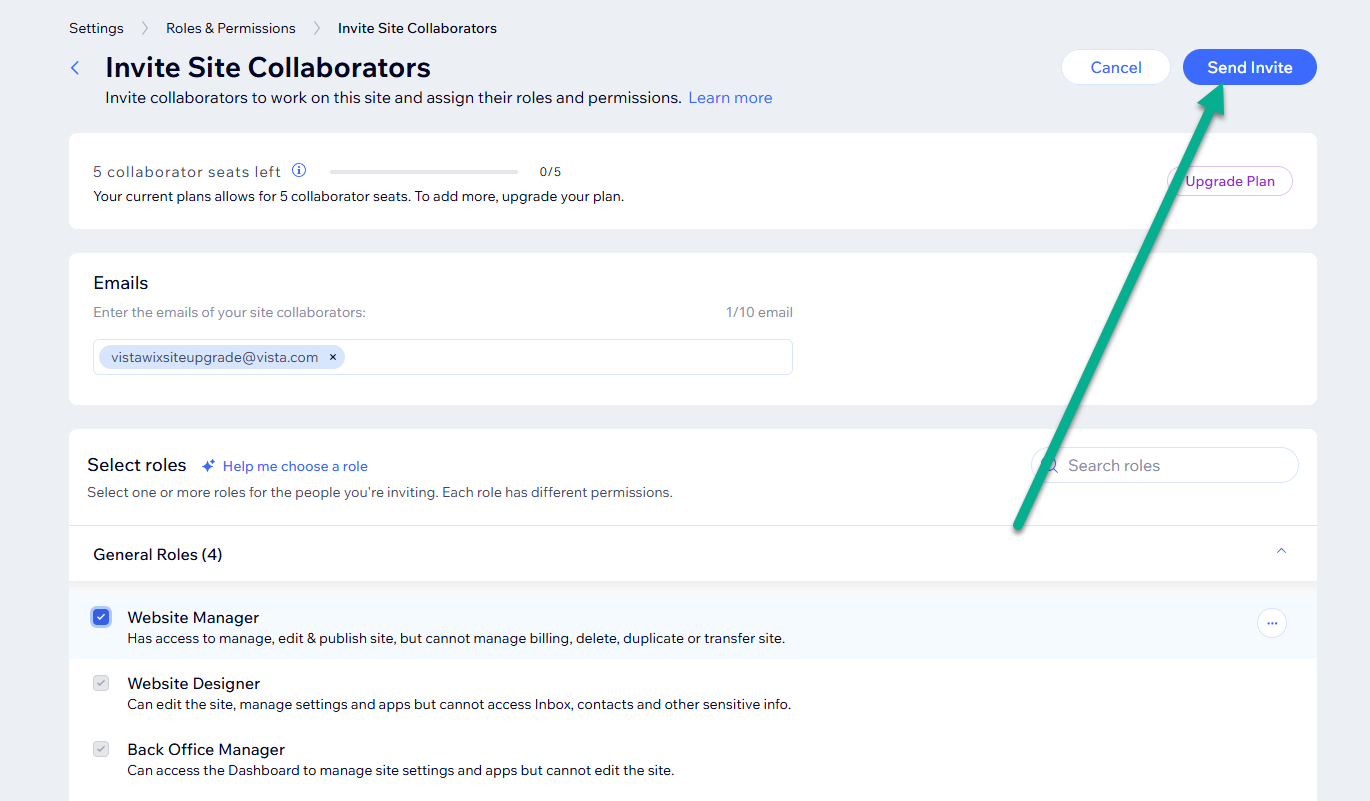
This gives designers or teammates access to your site. If you’ve been asked to add a collaborator, follow the steps below.
Steps to add a collaborator
Sign in to your account
Go to the VistaPrint site and sign in using the email associated with your website.
Go to My Account
From the top menu, open My Account to access the site's settings.
Open your website settings
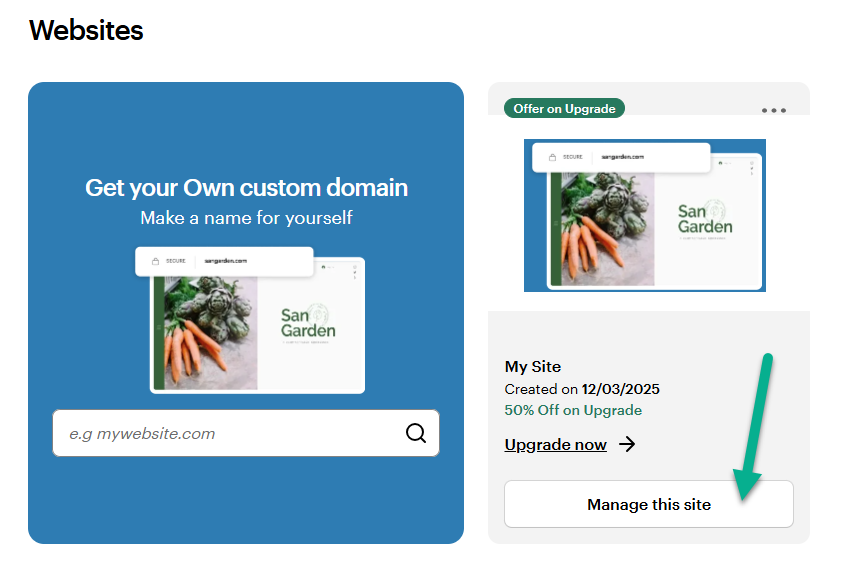
Select Websites & Digital. Locate your Vista x Wix website and select Manage this site. You'll now be on your Vista x Wix website dashboard.
Go to Settings
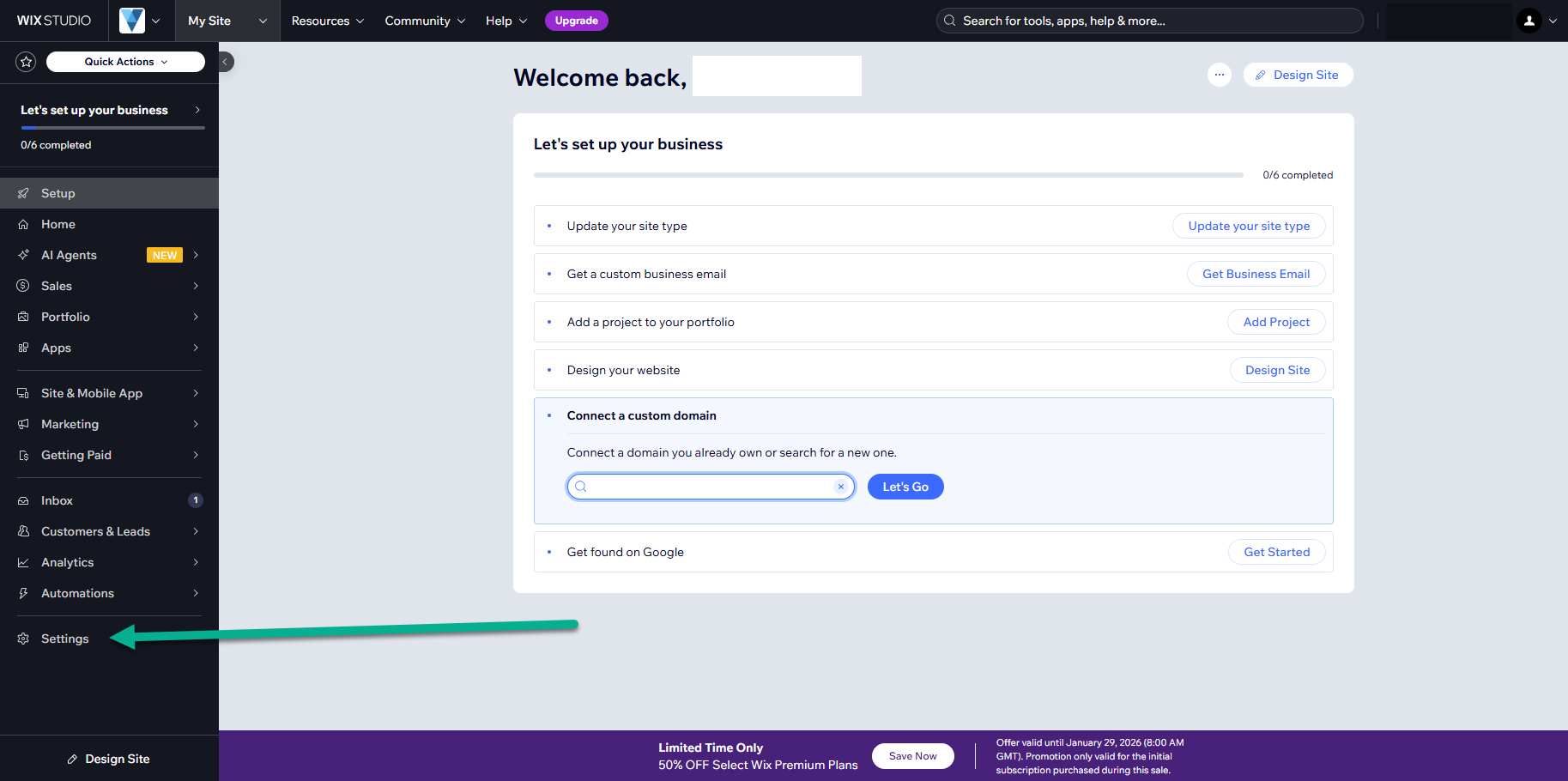
From your website dashboard, open Settings to manage site details and access.
Open Roles and permissions
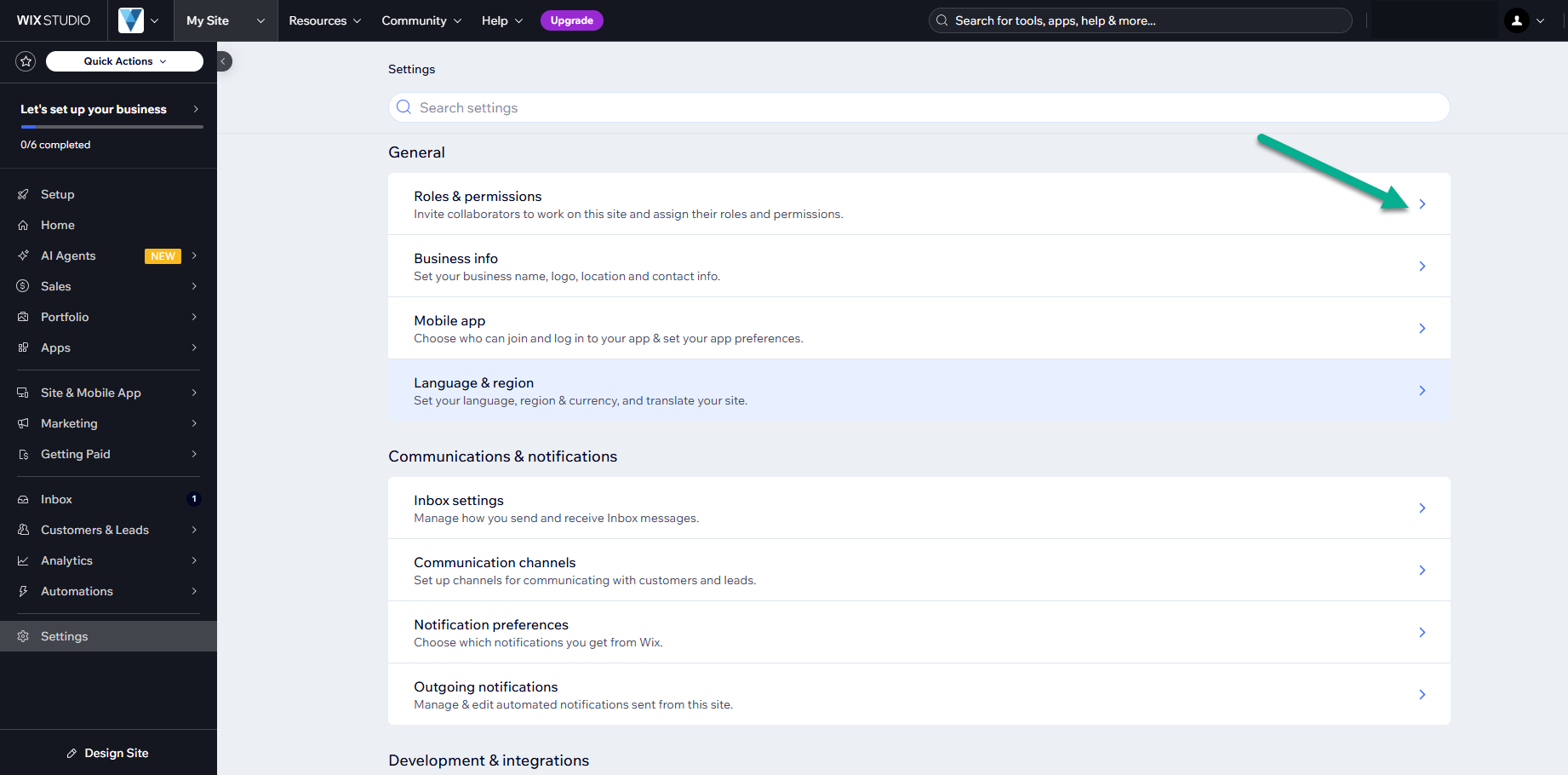
Under General, select Roles and permissions to control who can access your site.
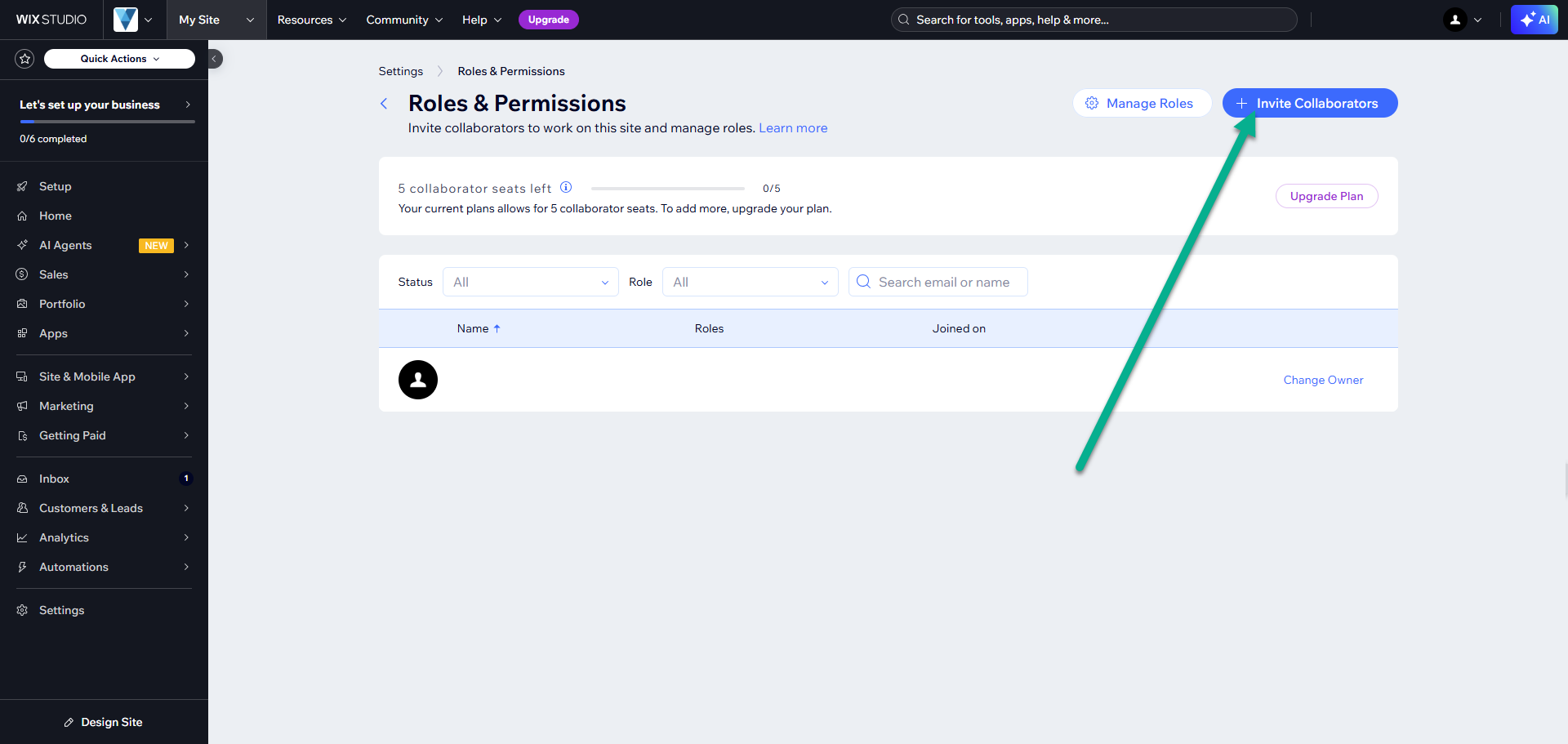
Invite a collaborator
Choose Invite collaborators, then enter the collaborator's email address.
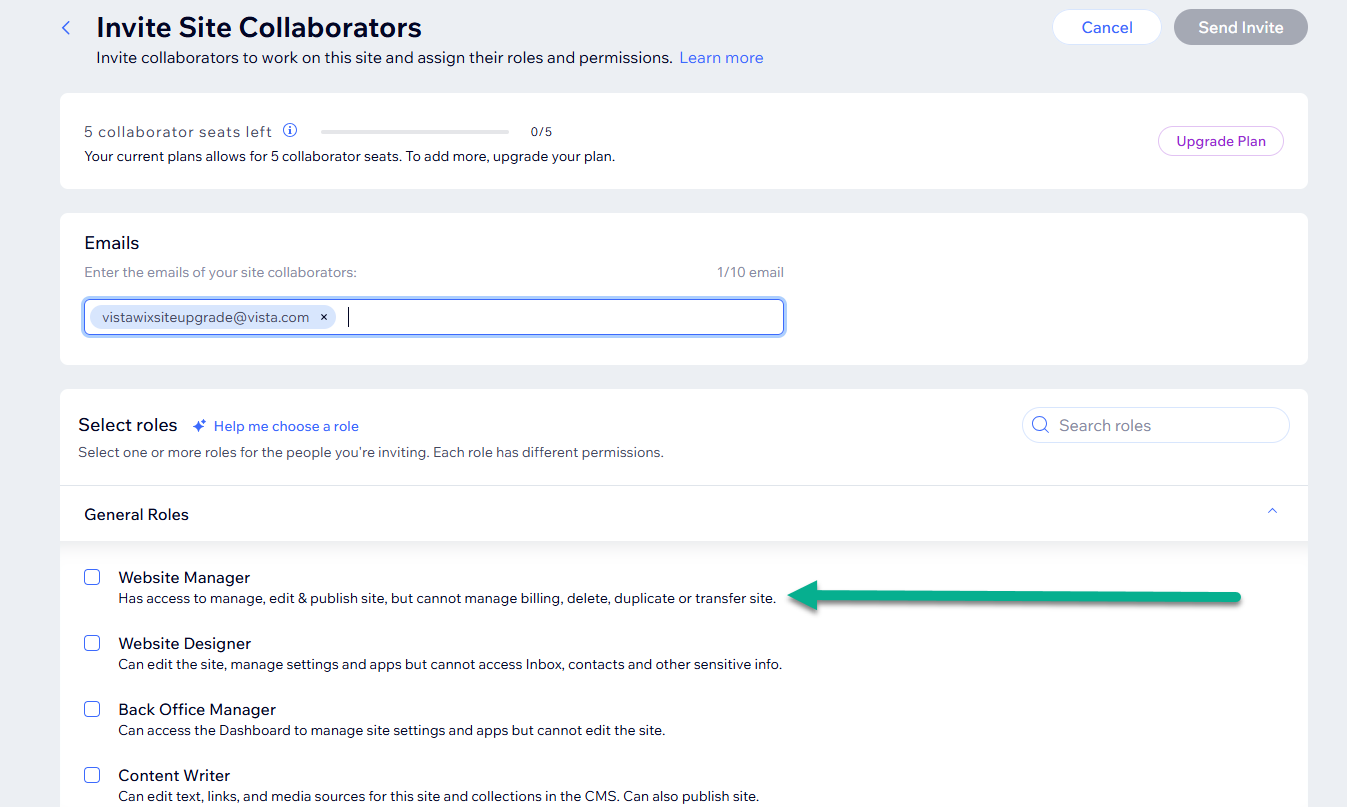
Assign a role
Select Website Manager, or another appropriate role, to define what they can edit.
Send the invite
Your collaborator will receive an email to accept access. Once they accept the invitation, they'll be able to access and work on your site based on the role you assigned.