
How do I downgrade my premium website?
Last updated 17 June 2026.
Guide
To downgrade your website plan, go to Subscriptions in your account, select Manage on your current plan, and choose a lower package.

Features not included in the lower plan will be disabled when the new plan starts. Make sure the lower plan includes the features you need before scheduling the downgrade.

Steps to schedule a downgrade

1

Go to your Subscriptions

Go to My Account and select Subscriptions.
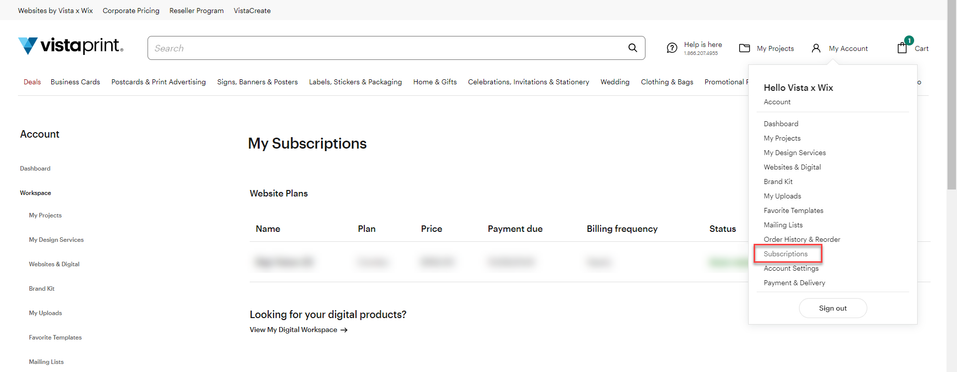
The My Subscriptions section in My Account showing website subscriptions.
2

Manage subscription

Find the subscription you want to change and select Manage.
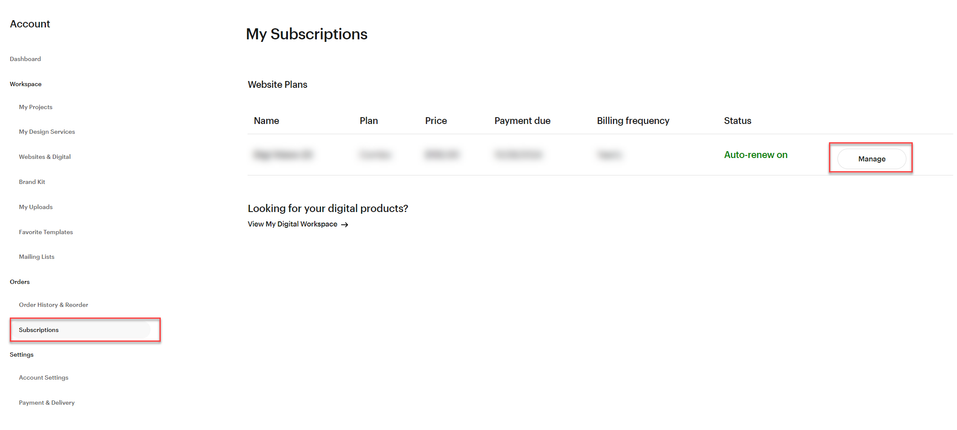
The My Subscriptions page open with a Manage button highlighted next to a premium website subscription.
3

Edit your plan

Select Edit Plan at the top of the page and choose Change plan.
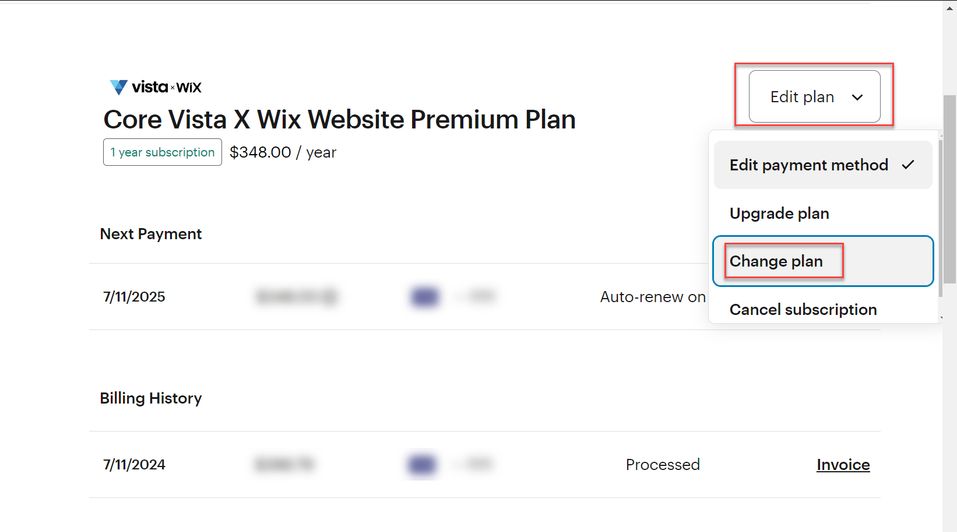
The website subscription page with the Edit plan menu open and the Change plan option highlighted.
4

Choose a new package

Select a new plan from our available packages and select Choose plan.
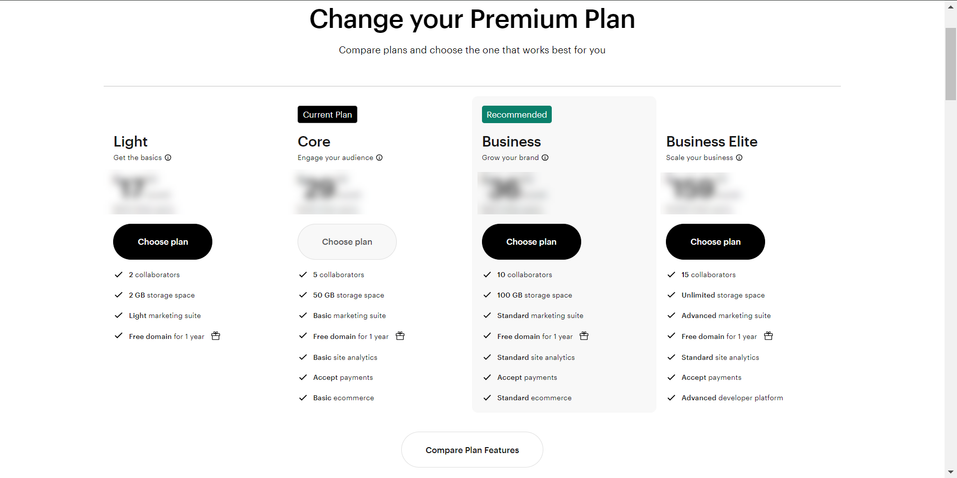
The Change your Premium Plan page showing available plans including Light, Core, Business and Business Elite with Choose plan buttons.
5

Confirm the change

Review the date the plan change will happen and select Change plan to confirm.
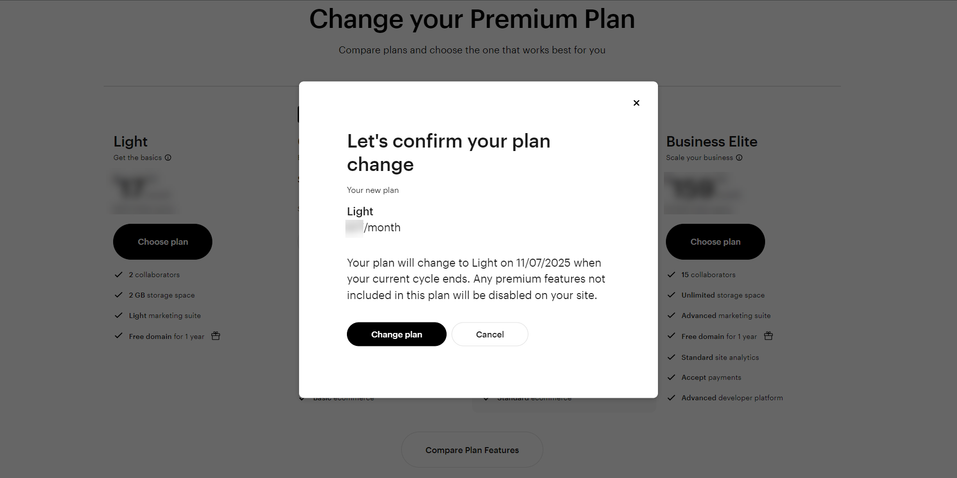
A confirmation dialog for changing the website plan to Light with Change plan and Cancel buttons.
6

Check the status

A yellow banner in your Subscriptions overview will confirm the scheduled change. You can cancel the scheduled change from this banner if you change your mind.
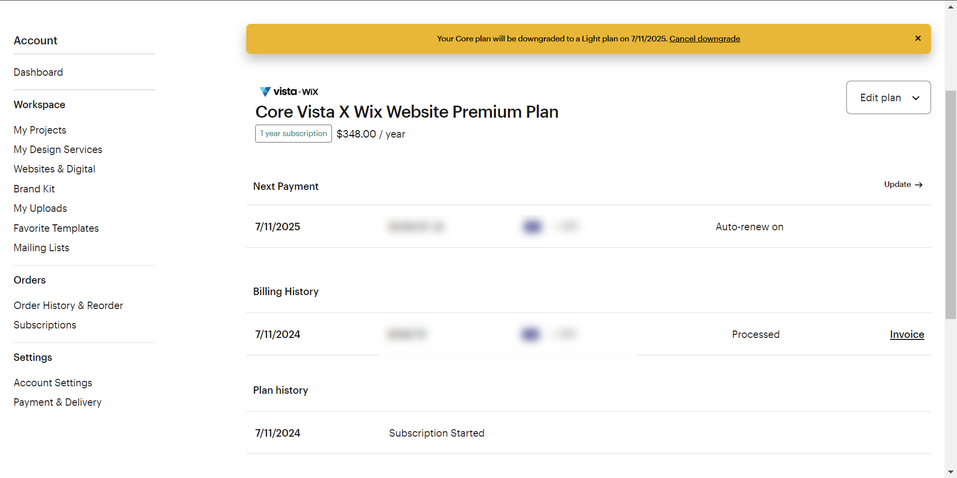
The My Subscriptions page with a yellow banner confirming a scheduled downgrade to a Light plan and a Cancel downgrade link.

Was this article helpful?
Learn how we use your feedback

Connect live with Customer Support

Need help?

Contact Us
