Upload your signature image
Before you start, make sure you have a clear image of your signature. You can scan it or take a photo with your phone, then upload it during the design process.

Steps to design your stamp
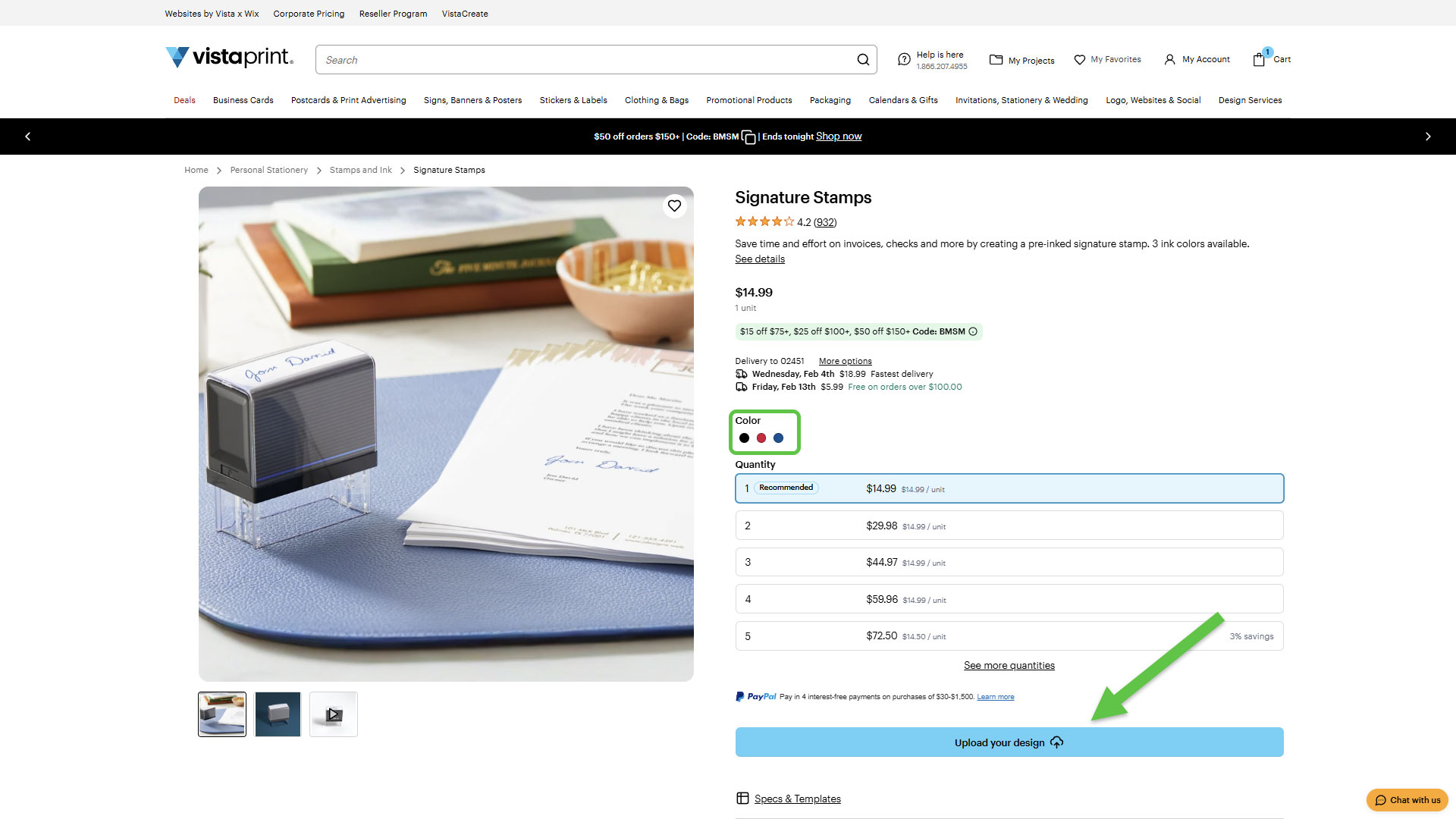
Upload Your Design
Go to the Signature Stamps page to start the customisation process. Choose the colour and quantity of your stamp, then select Upload your design to start designing.
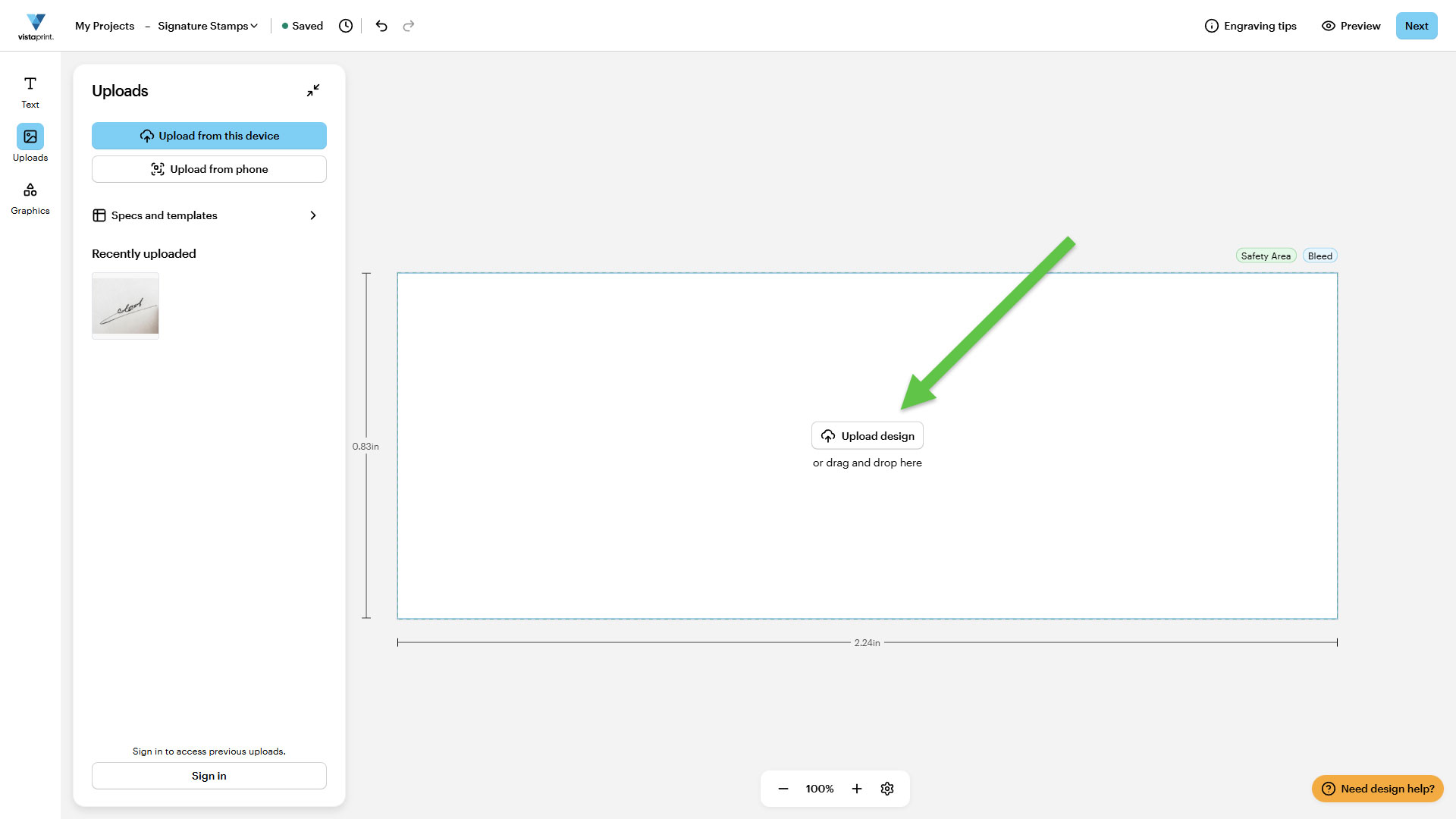
Upload your signature to the canvas
Select Upload your design on the canvas, then navigate to your saved signature file and select the image you want to upload.
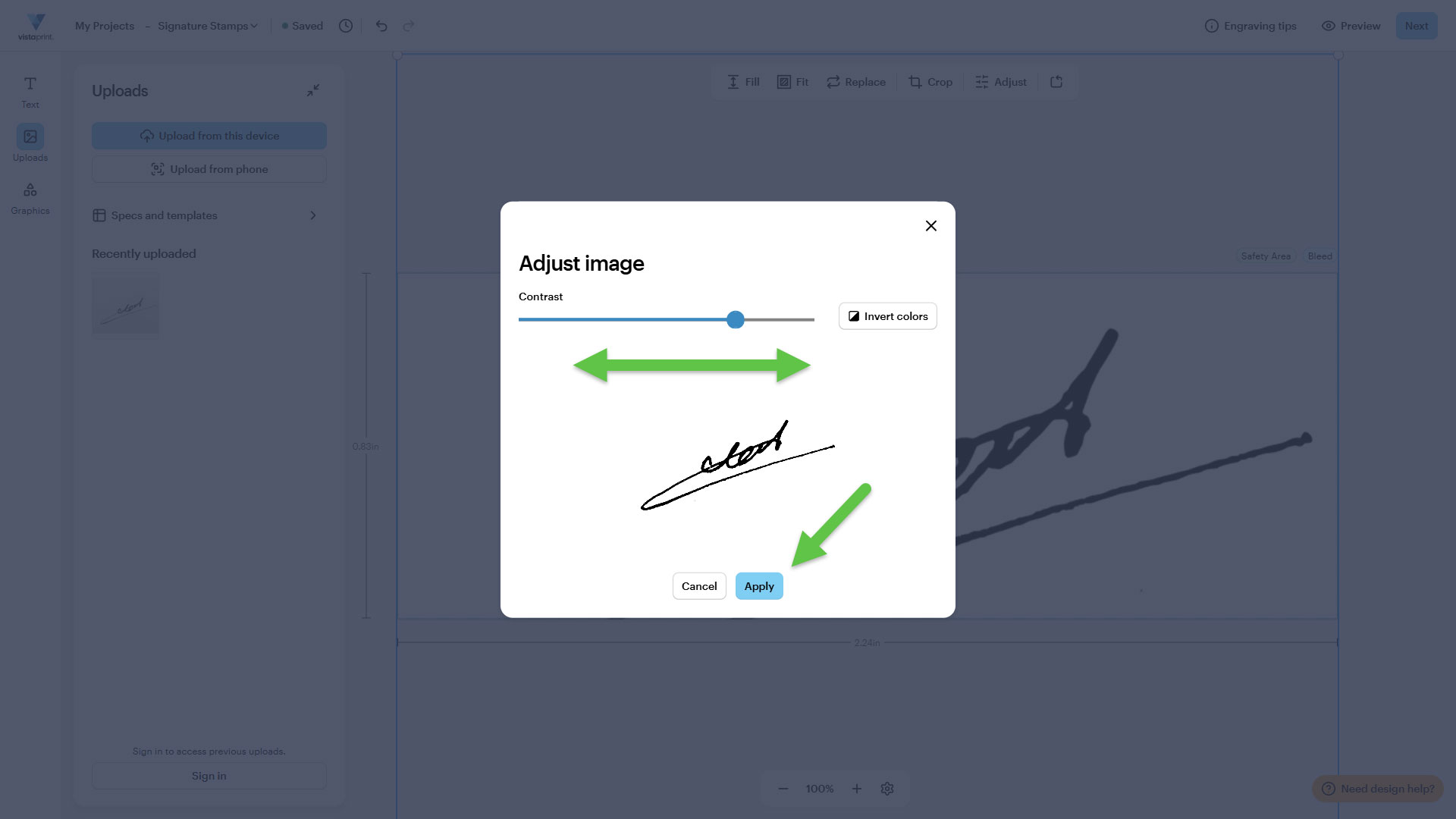
Adjust the image contrast
Use the contrast controls to improve visibility. When you’re done, select Apply. Generally, increasing contrast helps remove background noise and makes your signature clear and more legible on the stamp.
Open the crop tool
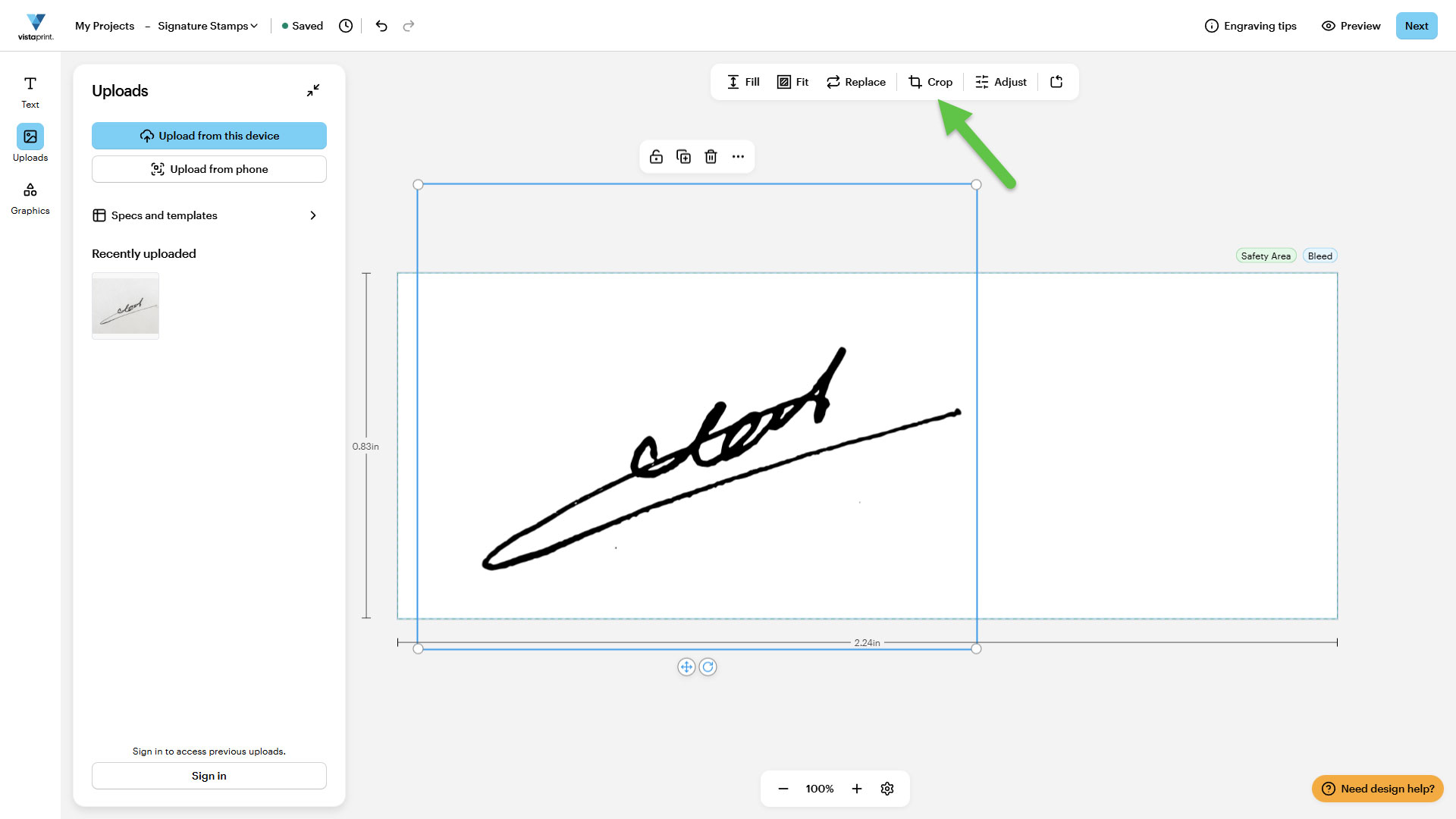
Select the signature image, then choose Crop from the image toolbar.
Adjust the crop
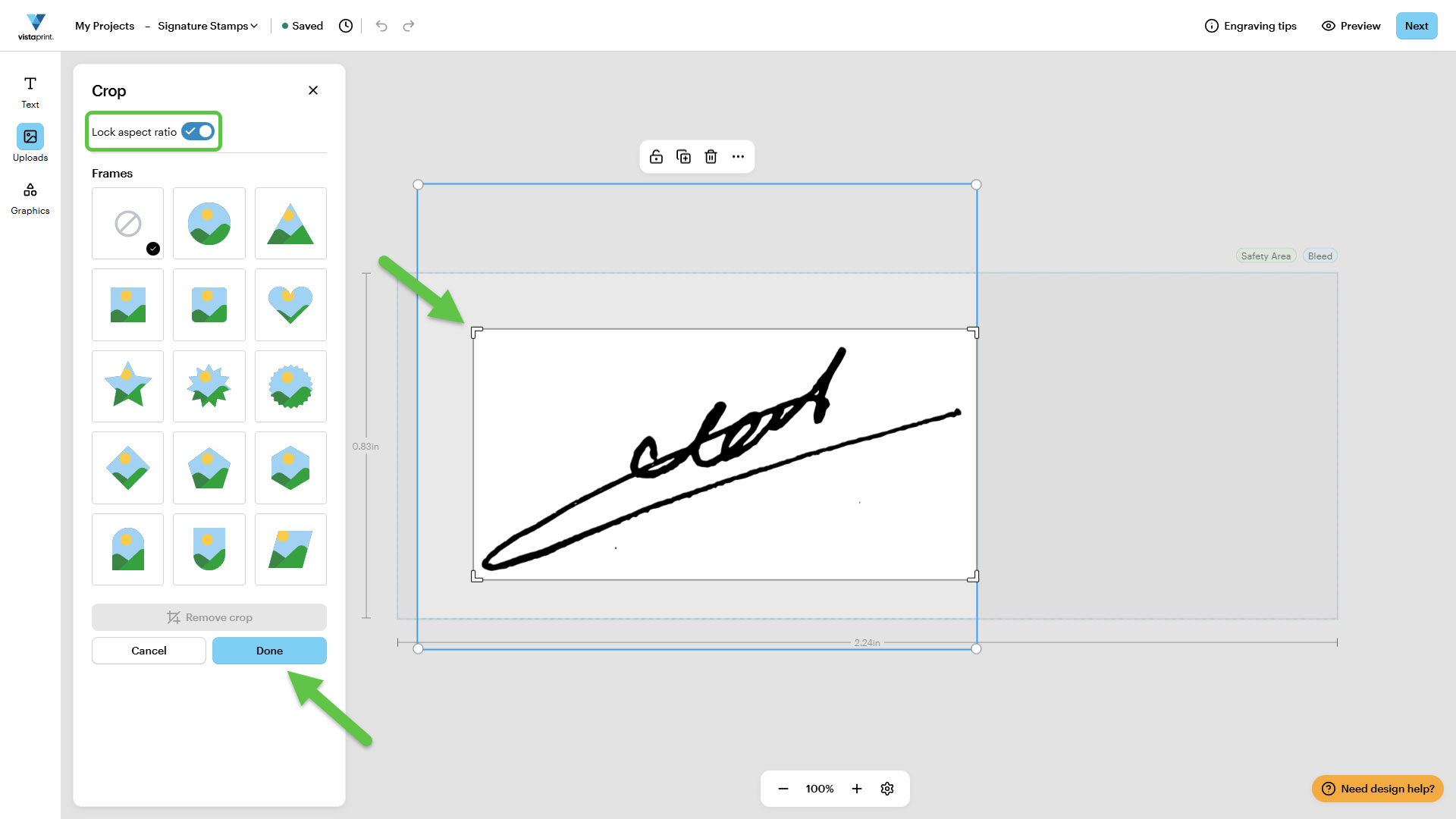
Move the white handles to trim the edges close to your signature without cutting off any part of the writing. To adjust proportions freely, turn off Lock aspect ratio. When finished, select Done.
Align the signature
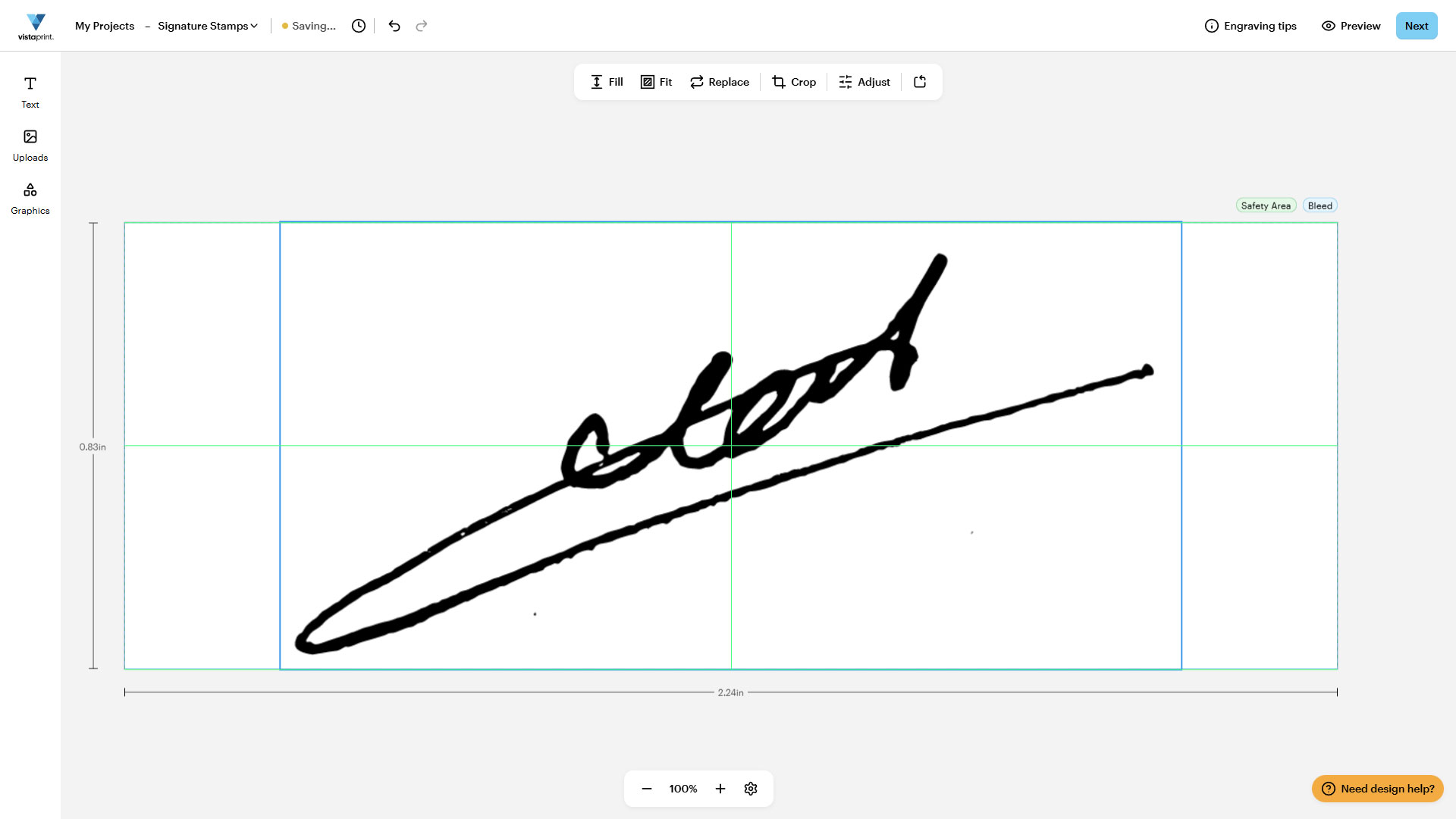
Drag the signature to centre it on the stamp. Once you’re happy with the placement, select Next.
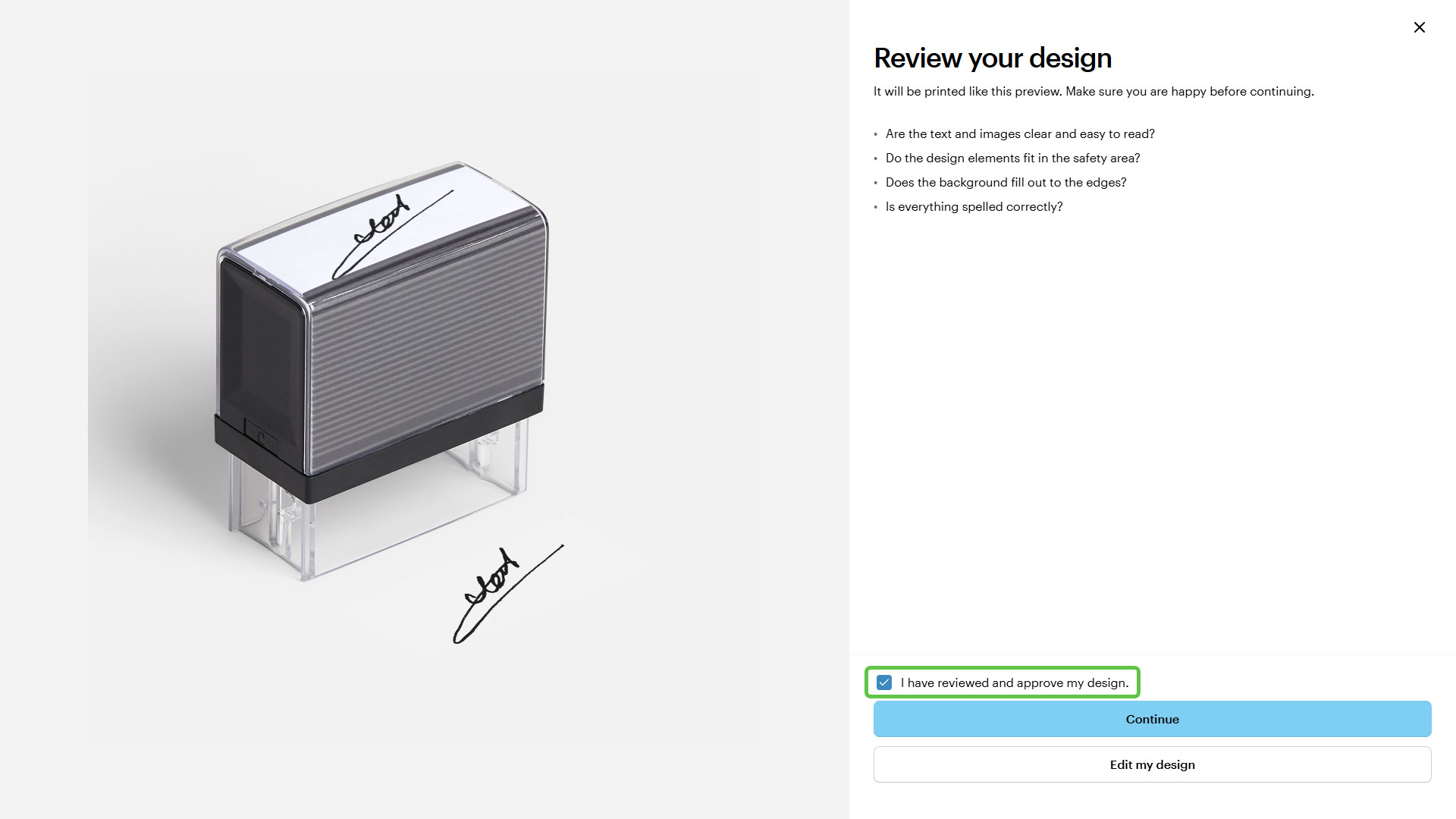
Review your design
Before purchasing, review your design or share it with colleagues or friends to get feedback.